There are many excellent Django tutorials available. Most of them, though, are written for Linux. This one will be for installation and development on a Windows platform.
Initial Setup
- Have Python installed. This project will be built using Python3. For instructions on how to do this, please go to python.org.
- Create a virtual environment
- Install Django in this virtual environment.
Create a Virtual Environment
- Create a directory for your virtual environment (venv). I have multiple projects, and I store all my venv files in one directory creatively called envs.
- From command prompt, run the following with the name you choose for this environment. I like to name my venv the same as my project name, but that is not necessary. In this command, I am naming my new environment tutorial.
c:\envs>python -m venv tutorialA virtual environment has been created and named tutorial. You can see its folder under envs.
Activate the virtual environment by entering this from the command prompt:
c:\envs>tutorial\Scripts\activateYou will know your virtual environment has been activated when its name appears in parenthesis in front of your prompt.
(tutorial) c:\envs>install django
Inside the virtual environment resides the latest version of Python which has been previously installed and the latest version of pip. To install Django simply run the following:
(tutorial) c:\envs>pip install DjangoProject Setup
After creating and activating the virtual environment and installing Django, the next step is to create a Django project. Only one project is created, but later we will create several apps within this project.
- Navigate to where you want the project – a folder which is separate from the virtual environment. I start my projects from the c drive.
- From that folder, run the following command with the name of your project:
(tutorial) c:\envs>cd c:\
(tutorial) c:\envs>django-admin startproject tutorial
Results: this directory structure. We will be editing the highlighted files.
- tutorial
- tutorial
- _pycache_
- _init_.py
- asgi.py
- settings.py
- urls.py
- wsgi.py
- manage.py
- db.sqlite3
- tutorial
Summary of these files created for the project:
- __init__.py → A blank Python script which indicates to the Python interpreter that this directory is actually a Python package. It allows Python packages to be imported from the directories.
- asgi.py → Provides a standard interface between async-capable Python web servers, frameworks, and applications.
- settings.py → A file that contains the configuration of the Django project. We will be editing this file as we add new apps and make other project-wide changes.
- urls.py → A file that contains URL patterns for the Django project. We will be editing this file in order to display html forms and run commands.
- wsgi.py → A file that contains WSGI configuration properties of the Django project. It’s basically a Python script that is used to run the development server and to help deploying to a production environment.
- manage.py → A command line utility and allows to interact with the Django project in many ways. We will be using this command throughout our project.
First, it may be confusing that there are two directories with the same name. However, the name of the main directory can still be changed with whatever name preferred. However, the second-level directory name is hardcoded in some of Django specific files, therefore; it is not recommended to change its name.
database setup
Before going any further a decision has to be made about how data is to be stored. By default, a SqlLite database has already been created for your project. However, there are other options. I will typically use a mySql database. To use any database orther than SqlLite, a change must be made to the connection in settings.py.
mySql setup
- Create your schema in your mySql database. (See MySQL.com ) I am naming mine tutorial.
- Install mysqlclient. From the command prompt run:
(tutorial) c:\tutorial>pip install mysqlclient- Open tutorial\settings.py and change the DATABASES code to:
DATABASES = {
    'default': {
        'ENGINE': 'django.db.backends.mysql',
        'NAME': 'tutorial',
        'USER': 'username',
        'PASSWORD': 'password',
        'HOST': 'localhost',
        'PORT': '3306',
    }
}- There are some Django tables that should be created before proceeding with creating apps. From the command prompt run this:
(tutorial) c:\tutorial>python manage.py migrateIf you return to the database you created, in the tutorial schema, you should now see these tables that Django created:
- auth_group
- auth_group_permissions
- auth_permission
- auth_user
- auth_user_groups
- auth_user_user_permissions
- django_admin_log
- django_content_type
- django_migrations
- django_session
Run the project
Django comes with a built-in web server for development. To run the project on the default post, simply navigate where the manage.py file is located and run the command:
(tutorial) c:\tutorial>python manage.py runserver
Watching for file changes with StatReloader
Performing system checks...

System check identified no issues (0 silenced).
April 02, 2022 - 13:26:44
Django version 3.2.12, using settings 'tutorial.settings'
Starting development server at http://127.0.0.1:8000/
Quit the server with CTRL-BREAK.
Now, open your browser with this url: http://127.0.0.1:8000/ . It should open to a default Django welcome page.
Prepare to create project apps
So far, we have a project, but it doesn’t do anything just yet. We will need to add apps to the project. But first, we have one more step. We need to create a user for our project.
(tutorial) c:\tutorial>python manage.py createsuperuser
Username (leave blank to use 'default'): admin
Email address: user@gmail.com
Password:
Password (again):
Superuser created successfully.
SEE THE RESULTS
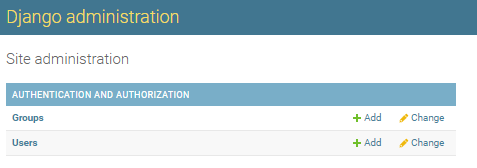
Open your browner with this url: http://127.0.0.1:8000/admin/ . Log in with the credentials created for your superuser and you should see the following page. Now, we’re getting somewhere! Next, we just need some apps to tell our project what to do.
About us
We are a rogue collective of bird watchers. We’ve been known to sneak through fences, climb perimeter walls, and generally trespass in order to observe the rarest of birds.
Latest posts
Categories
Proudly powered by WordPress